IGNOU ID Card Download: Step-by-Step Guide for Students
For each student registered at Indira Gandhi National Open University (IGNOU), the IGNOU ID Card is a crucial credential. When visiting your study center, taking exams, utilizing university resources, or fulfilling specific academic requirements, it may be necessary as evidence of your student status.
The ID card is now much simpler to download thanks to IGNOU's growing online student services. You may often obtain and download your digital ID card via the official student portal if you are a new student or have misplaced your physical ID card. Along with crucial advice and frequently asked concerns, this article offers a straightforward, step-by-step tutorial for downloading an IGNOU ID card.
What Is an IGNOU ID Card?
Students enrolled in the university's under graduate, graduate, diploma, certificate, and other programs are awarded an official student identification document called an IGNOU ID card.
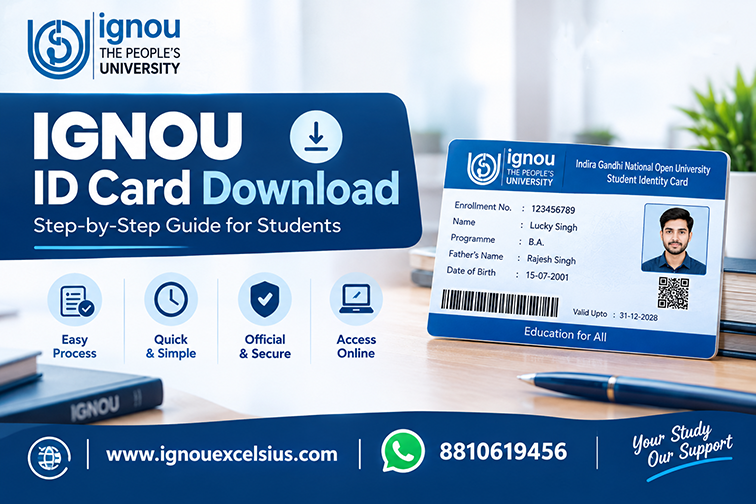
Typically, the ID card includes crucial information like:
The name of the student
The enrollment number
Name or code of the program
Information about the Regional Center
A picture
Information pertaining to admission or validity
Additional pertinent student information
In addition to carrying a paper copy when necessary, students should securely store a digital copy of their ID card on their computer or phone.
Step-by-Step Guide for IGNOU ID Card Download
Step 1: Go to the official IGNOU website
Start by going to the appropriate student services portal or the official IGNOU website. Instead than depending on unidentified third-party websites, always visit the official IGNOU website.
For your admission session, look for the student login, admission, or ID-card related service that applies.
Step 2: Access the Student Portal
Look for alternatives like Student Login, Admission, Student Services, or an ID-card download facility once you've reached the proper portal.
When IGNOU updates its online services, the option's precise location and appearance may change, so don't worry if the interface looks different from previous guides.
Step 3: Enter Your Login Information
You could be required to provide details related to your admission, like:
The enrollment number
The username or login credentials
Step 4: Access Your Account
Click the "Login" or similar button. You should be sent to your student dashboard after your credentials have been successfully validated.
Check your login information and, if needed, use the password-recovery option if you are unable to log in.
Step 5: Locate the ID Card Choice
Look for an option like ID Card, Download ID Card, Student ID Card, or a similar link on the dashboard after logging in.
To access your digital ID card, select the appropriate option.
If the ID card is not accessible, there might be a problem with your admission or student records, or it might not have been generated yet.
Step 6: Obtain the ID card
When your ID card shows up, carefully review all the details. Examine your:
Name
The enrollment number
The program
A picture
The Regional Center
Additional information shown
Choose the Download or Print option if everything is in order. On your device, save the PDF file to a safe place.
Step 7: Make a Copy
Students should think about taking a clear printout of the ID card, even though retaining a digital copy is easy. Store it securely among your other academic records.
To ensure you have access to it when needed, you can also save a backup copy in cloud storage or another safe place.
What If You Cannot Download Your IGNOU ID Card?
Students may occasionally encounter issues when attempting to download their ID card. Typical causes include of:
The wrong login information
Recently finished admissions procedures
The ID card has not yet been created.
Inaccurate student information
Issues with the website or server
Problems with internet or browser connectivity
After a while, try signing in once more and confirm that you are using the correct official gateway. Another option is to use an updated browser or try emptying the cache in your current browser.
Frequently Asked Questions
1. Do students need to have an IGNOU ID card?
Exams, study center visits, and other university-related activities may require the ID card, which is a crucial form of identification. As a result, students ought to keep it close at hand.
2. Is it possible to get my IGNOU ID card online?
Yes, IGNOU offers online access to student-related papers, including the ID card when it is accessible, through its student/admission services.
3. What information is needed in order to download the ID card?
Each portal and admission session may have different requirements. Students typically require their enrollment number, login information, or additional verification information.
4. What should I do if my ID card's photo is missing?
First, see if any updates have been made to your admission records. If the problem persists, follow the recommended corrective process and get in touch with the relevant IGNOU support or Regional Center.
5. Can I use my IGNOU ID card digitally?
For easy access to your student identity, a digital copy can be helpful. However, adhere to the guidelines given by IGNOU if a specific university activity calls for a printed or physical ID card.
6. What happens if I can't remember my IGNOU login password?
Utilize the password-recovery or reset option available on the appropriate official IGNOU website. Don't give your login information to those posing as ID-card providers.
Students should keep their IGNOU ID Card ready before appearing in the Term-End Examination. Once the hall ticket is released, students can check their exam date and centre details through the IGNOU Hall Ticket 2026: How to Download Your Admit Card guide.
After the Term-End Examination, students can check their marks and course-wise status through the IGNOU Grade Card. For complete information, read our IGNOU Grade Card 2026-2027: How To Check, Download and Apply For Revaluation guide.
← Back to All Articles